
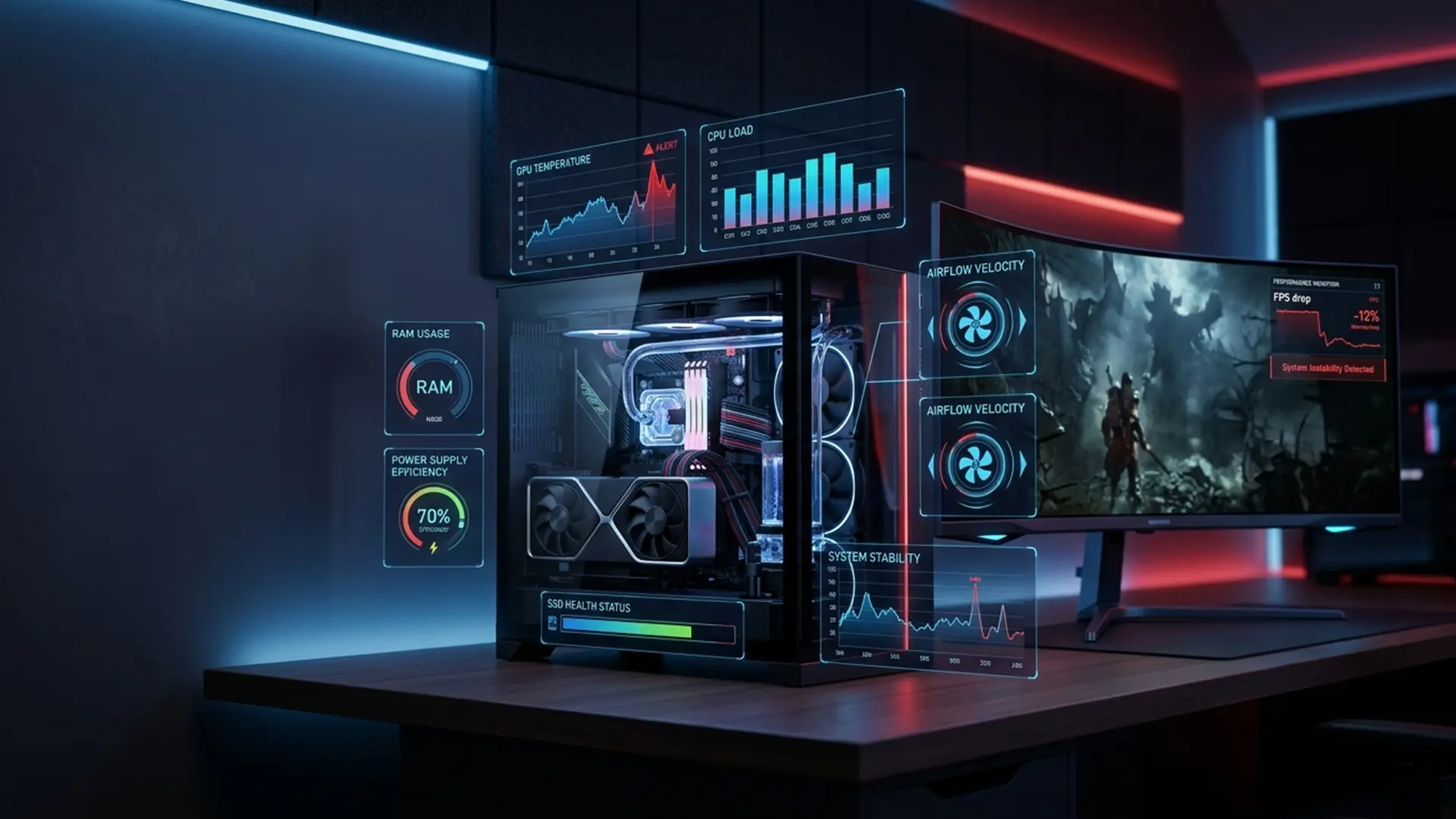
A gaming PC that crashes during a match, restarts without warning, freezes on the loading screen, or suddenly loses display output can have many possible causes.
rnThe problem may come from software, graphics drivers, overheating, RAM instability, power supply limitations, storage failure, or an incorrectly configured upgrade.
rnBecause gaming systems operate under heavier loads than standard office computers, small hardware or cooling problems may only appear when a demanding game begins.
rnThis guide explains what may cause gaming PC crashes and how to identify the right next step.
rnWhat Does a Gaming PC Crash Look Like?
rnNot every gaming problem has the same cause. Understanding the symptom can help narrow the diagnosis.
rnCommon gaming PC crash symptoms include:
rn- rn
- The game closes and returns to the desktop rn
- The computer freezes completely rn
- The screen turns black rn
- The PC restarts during gameplay rn
- A blue screen error appears rn
- The graphics driver stops responding rn
- The game stutters before crashing rn
- Fans become extremely loud rn
- The PC shuts down when temperatures rise rn
Each symptom provides a clue, but professional testing may still be needed before replacing any hardware.
rn1. The Graphics Driver Is Unstable
rnGraphics drivers allow games and the operating system to communicate with the GPU. A corrupted, outdated, or incompatible driver can cause:
rn- rn
- Game crashes rn
- Black screens rn
- Visual glitches rn
- Poor frame rates rn
- Driver timeout messages rn
Problems may begin after a driver update, Windows update, new game installation, or GPU replacement.
rnUse official driver sources that match the installed graphics card. Avoid unofficial driver websites and automatic driver tools that cannot verify exact compatibility.
rnSoftware and driver problems can be reviewed through professional Software Services.
rn2. The CPU or GPU Is Overheating
rnGames place sustained pressure on the processor and graphics card. If the cooling system cannot remove heat effectively, the system may reduce performance, crash, restart, or shut down.
rnOverheating may be caused by:
rn- rn
- Dust buildup rn
- Blocked air intake rn
- Poor case airflow rn
- Faulty fans rn
- Old thermal paste rn
- Incorrect cooler installation rn
- High room temperature rn
- Aggressive overclocking rn
Monitor temperatures while running a game or controlled stress test. One unusually high reading does not always identify the exact fault, so compare idle and load behaviour.
rnTrust IT Skills provides Gaming PC Services covering cooling improvements, airflow optimisation, fan upgrades, thermal servicing, diagnostics, and performance testing.
rn3. The Power Supply Is Not Delivering Stable Power
rnA gaming PC may restart or shut down if the power supply cannot support the installed CPU, GPU, cooling system, drives, and accessories.
rnThis may happen after:
rn- rn
- Installing a more powerful GPU rn
- Upgrading the processor rn
- Adding several fans or drives rn
- Using an ageing power supply rn
- Connecting components with incorrect cables rn
A high wattage number alone does not guarantee quality or compatibility. Power supply condition, efficiency, cable configuration, power delivery, and component requirements all matter.
rnDo not continue using a system that smells burnt, makes electrical noises, or repeatedly loses power.
rn4. The RAM Is Faulty or Unstable
rnRAM problems can cause crashes that seem random. The PC may work normally during browsing but fail during games, rendering, or multitasking.
rnPossible RAM-related causes include:
rn- rn
- A loose memory module rn
- A faulty RAM stick rn
- Mixed incompatible modules rn
- Incorrect memory speed rn
- Unstable XMP or EXPO settings rn
- A motherboard compatibility problem rn
Memory testing may help identify instability. If settings were changed recently, returning the BIOS to stable defaults can be a useful diagnostic step.
rn5. The GPU Is Failing or Improperly Installed
rnA failing, overheating, or poorly seated graphics card may cause:
rn- rn
- Black screens rn
- Coloured artifacts rn
- Flashing textures rn
- Driver crashes rn
- No display under load rn
- Sudden restarts rn
GPU issues may also appear after transport, cleaning, an upgrade, or cable changes.
rnBefore assuming the graphics card has failed, check power connections, display cables, driver condition, temperatures, and motherboard compatibility.
rnHardware inspection and GPU installation support are available under Hardware Repair.
rn6. The Game Files Are Corrupted
rnSometimes the computer is stable and only one game crashes. In that situation, the issue may be linked to the game installation rather than the whole PC.
rnYou can try:
rn- rn
- Verifying the game files rn
- Installing available updates rn
- Removing conflicting modifications rn
- Checking game requirements rn
- Resetting graphics settings rn
- Reinstalling the affected game rn
If several unrelated games crash, the problem is more likely to involve drivers, cooling, memory, power, or another system-wide issue.
rn7. The Storage Drive Has Problems
rnGames depend on the SSD or hard drive for loading maps, textures, updates, and saved data.
rnStorage problems may cause:
rn- rn
- Slow loading rn
- Missing game files rn
- Freezing during installation rn
- Crashes while loading levels rn
- Corrupted updates rn
- Operating system instability rn
A drive that disconnects, reports errors, or makes unusual sounds should be checked promptly. Back up important files where possible before running repeated tests.
rn8. The BIOS Settings Are Unstable
rnGaming PCs often use advanced motherboard settings for memory profiles, fan curves, processor performance, or overclocking.
rnIncorrect settings may create instability even when the hardware is working.
rnPotential causes include:
rn- rn
- Aggressive CPU overclocking rn
- Unstable RAM profiles rn
- Incorrect voltage settings rn
- Outdated BIOS firmware rn
- Poor fan curve configuration rn
- Settings from previous hardware rn
BIOS changes should be made carefully. Installing the wrong firmware or interrupting an update may prevent the computer from starting.
rn9. The PC Has Poor Airflow
rnStrong components cannot perform consistently when hot air remains trapped inside the case.
rnAirflow problems may result from:
rn- rn
- Too few case fans rn
- Fans facing the wrong direction rn
- Cables blocking airflow rn
- Dust filters becoming clogged rn
- A small case with high-power hardware rn
- The GPU sitting close to other expansion cards rn
Cooling upgrades should consider the complete airflow path rather than simply adding more fans.
rn10. The Hardware Upgrade Is Not Fully Compatible
rnA new component may fit physically but still create problems with:
rn- rn
- Power requirements rn
- Motherboard support rn
- BIOS compatibility rn
- Case clearance rn
- Cooling capacity rn
- RAM specifications rn
- Operating system drivers rn
This is especially important for GPU, CPU, RAM, NVMe, cooler, and power supply upgrades.
rnThe Gaming PC Services section covers custom gaming PC builds, hardware upgrades, GPU and CPU installation, cooling improvements, BIOS setup, cable management, and system testing.
rnGaming PC Lag vs Gaming PC Crashing
rnLag and crashing are related but not identical.
rnLag may involve low frame rates, delayed response, network latency, or stuttering.
rnCrashing means the game or system stops functioning and closes, freezes, restarts, or loses display output.
rnLow frame rates may point to graphics settings or limited hardware. Sudden shutdowns are more likely to involve power or overheating. Online delay may come from the network rather than the PC.
rnCorrectly identifying the symptom avoids replacing parts that are not causing the problem.
rnWhat Should You Check First?
rnYou can start with several safe checks:
rn- rn
- Restart the computer rn
- Install official game updates rn
- Check available storage rn
- Review CPU and GPU temperatures rn
- Close unnecessary background programs rn
- Verify the game files rn
- Check official graphics drivers rn
- Remove recent unstable overclocking settings rn
- Record any error messages rn
- Note whether the crash affects one game or several rn
Avoid repeatedly stress-testing a computer that is overheating, making electrical noises, or shutting down unexpectedly.
rnFrequently Asked Questions
rnWhy does my gaming PC keep crashing during games?
rnCommon causes include graphics driver problems, overheating, unstable RAM, insufficient power, corrupted game files, and failing hardware.
rnWhy does my PC restart when I start a game?
rnThe power supply may be unstable, the CPU or GPU may be overheating, or the system may have memory or motherboard problems.
rnCan a GPU cause games to crash?
rnYes. GPU overheating, driver problems, power issues, physical failure, or incorrect installation can cause game crashes and black screens.
rnWhy does my gaming PC freeze but not shut down?
rnComplete freezing may be linked to RAM, storage, drivers, overheating, software conflicts, or motherboard instability.
rnCan low RAM cause games to crash?
rnInsufficient RAM may cause poor performance or application crashes, while faulty or unstable RAM can crash the entire system.
rnHow do I know whether my gaming PC is overheating?
rnSigns include loud fans, rising temperatures, reduced performance, stuttering, restarts, and shutdowns during demanding games.
rnCan the power supply cause game crashes?
rnYes. A failing or undersized power supply may cause restarts, black screens, shutdowns, and instability under load.
rnWhy does only one game crash on my PC?
rnThe game files, settings, updates, modifications, or compatibility may be responsible if other games and applications remain stable.
rnShould I update the BIOS to stop game crashes?
rnA BIOS update may help with specific compatibility problems, but it should only be performed when appropriate for the exact motherboard and issue.
rnWhen should I take my gaming PC for repair?
rnRequest diagnostics when crashes affect several games, the PC overheats, restarts, loses display, shows artifacts, or remains unstable after basic software checks.
rnStop Guessing Which Gaming Component Is Failing
rnA crashing gaming PC does not automatically need a new GPU. The cause may be cooling, memory, power delivery, storage, drivers, BIOS configuration, or another component.
rnTrust IT Skills provides gaming PC diagnostics, repairs, upgrades, cooling support, and custom build services in Dubai.
rnContact Trust IT Skills to request a gaming PC inspection or upgrade consultation.