
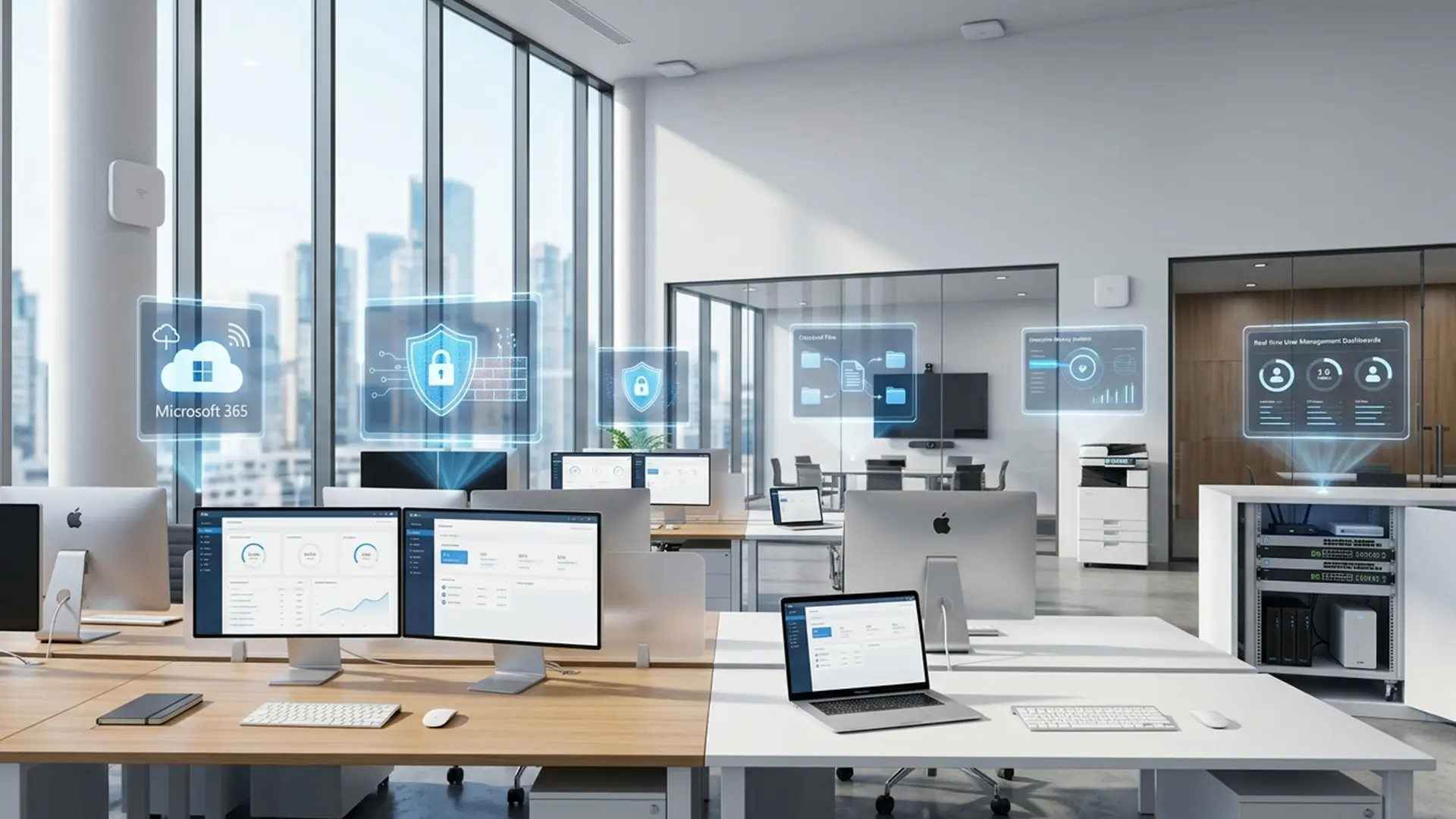
Opening a new office involves more than buying computers and connecting them to Wi-Fi.
Employees need reliable devices, secure accounts, shared files, email access, printers, backups, software, network coverage, and a clear way to get technical support when something stops working.
When these systems are planned separately, businesses often face weak Wi-Fi, inconsistent device settings, missing files, licensing problems, and avoidable downtime.
This checklist explains the main areas to plan when setting up or expanding an office in Dubai.
1. Assess the Office and Team Requirements
Begin by understanding how the office will operate.
Consider:
- How many employees will use the network?
- Will the team use desktops, laptops, or both?
- Which employees work remotely?
- What software does each department require?
- Will staff share large files?
- Are there printers, scanners, phones, cameras, or meeting systems?
- Does the business handle sensitive customer or financial data?
- How quickly is the team expected to grow?
A small clinic, retail office, design studio, consulting firm, and e-commerce business will have different technical requirements.
Trust IT Skills provides Business IT services for offices, startups, SMEs, clinics, retailers, and growing teams in Dubai.
2. Choose Suitable Business Computers
Office computers should match the employee’s actual workload.
Basic administration may require reliable entry-level or mid-range devices. Design, engineering, media, analytics, and development roles may need stronger processors, more RAM, dedicated graphics, and larger storage. Review:
- Processor requirements
- RAM capacity
- SSD storage
- Screen size
- Ports and docking needs
- Battery requirements
- Warranty and repairability
- Software compatibility
Buying the same device for every employee may simplify support, but different roles may still need different specifications.
3. Plan the Office Network
A stable office network should support employees, printers, cloud tools, video meetings, mobile devices, and future expansion.
Network planning may include:
- Internet connection placement
- Router and firewall selection
- Network switches
- Ethernet cabling
- Wi-Fi access points
- Guest Wi-Fi
- Printer connectivity
- Meeting room coverage
- Secure administrator access
- Network equipment storage
Placing one consumer router in a large office may leave dead zones and unstable connections.
The network should be designed around office size, walls, device count, bandwidth needs, and security requirements.
4. Separate Business and Guest Wi-Fi
Employees, customers, visitors, and personal devices should not necessarily share the same unrestricted network. A separate guest network can reduce unnecessary access to:
- Office computers
- Shared folders
- Network printers
- Internal devices
- Business systems
- Administrative tools
Guest access should be convenient without exposing internal business resources.
5. Set Up Business Email Properly
Employees should use business email accounts rather than shared personal accounts. A structured setup may include:
- Individual employee addresses
- Shared mailboxes
- Department aliases
- Email signatures
- Account recovery methods
- Multi-factor authentication
- Mobile email configuration
- Outlook setup
- Access rules for former employees
A consistent email structure improves professionalism and makes account management easier as the company grows.
The Business Setup & Maintenance section includes business email setup, Microsoft 365 configuration, workstation installation, and ongoing office maintenance.
6. Configure Microsoft 365 or Other Business Software
Many offices rely on Microsoft 365 for email, documents, spreadsheets, presentations, Teams, calendars, and shared work. The setup should consider:
- Correct subscription plans
- User licences
- Administrative roles
- Shared mailboxes
- Teams and groups
- OneDrive access
- File permissions
- Device installation
- Account recovery
- Security settings
Licences should be assigned to the correct users and removed when employees leave.
Businesses should avoid sharing one login across several employees because it weakens security and accountability.
7. Install Required Software Consistently
Each workstation should have the approved tools needed for the employee’s role. These may include:
- Office applications
- Browsers
- Accounting systems
- Security tools
- Communication software
- Industry-specific applications
- Printer and scanner software
- Remote support tools
- Cloud storage applications
- PDF tools
Installing software consistently reduces compatibility problems and makes troubleshooting easier.
The main Software Services page covers software installation, operating system support, email setup, Microsoft Office setup, security checks, and performance optimisation.
8. Create a File Storage and Sharing Plan
Employees need to know where business files should be saved.
Without a clear system, important documents may be scattered across desktops, email attachments, personal cloud accounts, external drives, and messaging apps. A file plan should define:
- Where active files are stored
- Who can access each folder
- How files are named
- How versions are managed
- Which files can be shared externally
- How former employee access is removed
- How long records are retained
Permissions should follow actual job requirements rather than giving every employee access to every folder.
9. Set Up Reliable Backups
Cloud synchronisation and backup are not always the same thing. A proper backup plan should consider:
- Which devices and folders are protected
- How often backups run
- Where backup copies are stored
- How long previous versions remain available
- Who can restore files
- Whether backups are encrypted
- How recovery is tested
The business should also plan for accidental deletion, device theft, ransomware, storage failure, and employee mistakes.
A backup is only useful when files can be restored successfully.
10. Configure Printers and Scanners
Printers and scanners can become a frequent source of office disruption when they are not configured consistently. Planning may include:
- Network printer setup
- Driver installation
- Scan-to-email
- Scan-to-folder
- User permissions
- Default printing settings
- Colour printing controls
- Secure printing
- Consumable monitoring
- Device naming
Employees should be given clear instructions for connecting to the correct device.
11. Protect Every Business Device
Basic device security should be applied consistently across the office. This may include:
- Strong passwords
- Multi-factor authentication
- Updated operating systems
- Approved antivirus protection
- Screen locking
- Restricted administrator access
- Disk encryption
- Secure browser settings
- Automatic updates
- Device recovery information
Security should not depend entirely on employees remembering every step manually.
12. Plan Employee Onboarding
A repeatable onboarding checklist makes it easier to prepare devices and accounts for new staff. Before the employee’s first day, confirm:
- The device is ready
- The operating system is updated
- Required software is installed
- Email access works
- Shared folders are assigned
- The printer is connected
- Security settings are applied
- Passwords or activation steps are prepared
- Old employee data is not present
A documented process reduces delays and gives every employee a more consistent setup.
13. Plan Employee Offboarding
When an employee leaves, access should be reviewed promptly. The business may need to:
- Disable the account
- Change shared passwords
- Remove remote access
- Recover the laptop
- Transfer business files
- Redirect business email
- Remove software access
- Review shared folders
- Protect customer data
Unmanaged former employee access can create security and operational risks.
14. Prepare for Remote and On-Site Work
Many teams move between the office, home, client locations, and travel. A flexible IT setup may include:
- Secure cloud access
- Managed employee laptops
- Multi-factor authentication
- Remote support tools
- Approved file-sharing systems
- Virtual meeting software
- Device encryption
- Secure Wi-Fi guidance
Remote access should be configured intentionally rather than through unknown or unapproved tools.
15. Create an IT Maintenance Schedule
Business systems need regular attention after the initial setup. Ongoing maintenance may include:
- Operating system updates
- Software updates
- Security checks
- Backup reviews
- Device health checks
- Network checks
- Printer maintenance
- Storage reviews
- User account management
- Hardware cleaning
Maintenance helps identify small issues before they become urgent failures.
Trust IT Skills offers Business Support & Repairs for office computers, laptops, printers, networks, email systems, software faults, slow devices, and urgent technical problems.
16. Decide How Employees Will Request IT Support
Employees should know exactly what to do when a device, account, printer, or network stops working. A support process should define:
- How to report an issue
- What information to include
- Which problems are urgent
- Who approves purchases or repairs
- Whether support is remote or on-site
- How replacement devices are handled
- Who communicates progress
A clear support path reduces repeated messages and helps technical problems reach the right person faster.
Common Office IT Setup Mistakes
Businesses often face avoidable problems because they:
- Buy devices without checking software requirements
- Use one Wi-Fi router for a large office
- Share passwords across employees
- Skip backups
- Use personal email accounts
- Give every user administrator access
- Store files only on local computers
- Ignore employee offboarding
- Wait for equipment to fail before maintenance
- Use unlicensed software
Planning these areas from the beginning can save time and reduce disruption later.
Frequently Asked Questions
What does a new office IT setup include?
It may include computers, workstations, Wi-Fi, network equipment, email accounts, Microsoft 365, printers, software, backups, security, and user access.
How do I set up an office network in Dubai?
The setup should be based on office size, user count, cabling, internet placement, Wi-Fi coverage, security requirements, printers, and future growth.
Does a small business need professional IT support?
Professional support can help when the business depends on computers, email, shared files, networks, printers, cloud systems, or customer data.
What computers should I buy for office employees?
Choose specifications based on each role’s software, workload, mobility needs, storage requirements, and future use rather than price alone.
How should a business set up employee email?
Use individual business accounts, suitable licences, multi-factor authentication, recovery methods, shared mailboxes, and documented onboarding and offboarding.
Is Microsoft 365 useful for small businesses?
It can provide business email, Office applications, Teams, calendars, OneDrive, and administrative control, depending on the selected plan.
What is the difference between cloud sync and backup?
Cloud sync keeps files consistent across devices, while backup is intended to preserve recoverable copies from earlier points in time.
How often should office computers receive maintenance?
The schedule depends on device use and business needs, but updates, security, backup checks, storage reviews, and hardware health should be reviewed regularly.
Can IT support be provided remotely?
Many software, email, account, and configuration problems can be supported remotely. Hardware, cabling, network placement, and physical failures may require on-site service.
When should a business request an IT setup assessment?
Request an assessment when opening an office, moving location, adding employees, replacing devices, experiencing unstable Wi-Fi, or reorganising business systems.
Build Your Office IT Systems Around Daily Work
A good office IT setup should make everyday work easier, not add more technical problems.
Trust IT Skills supports Dubai businesses with new office setup, computer installation, network configuration, email and Microsoft 365 setup, backups, repairs, remote assistance, and ongoing maintenance.
Learn more about Trust IT Skills, or contact the team to discuss your office requirements.