
Introduction
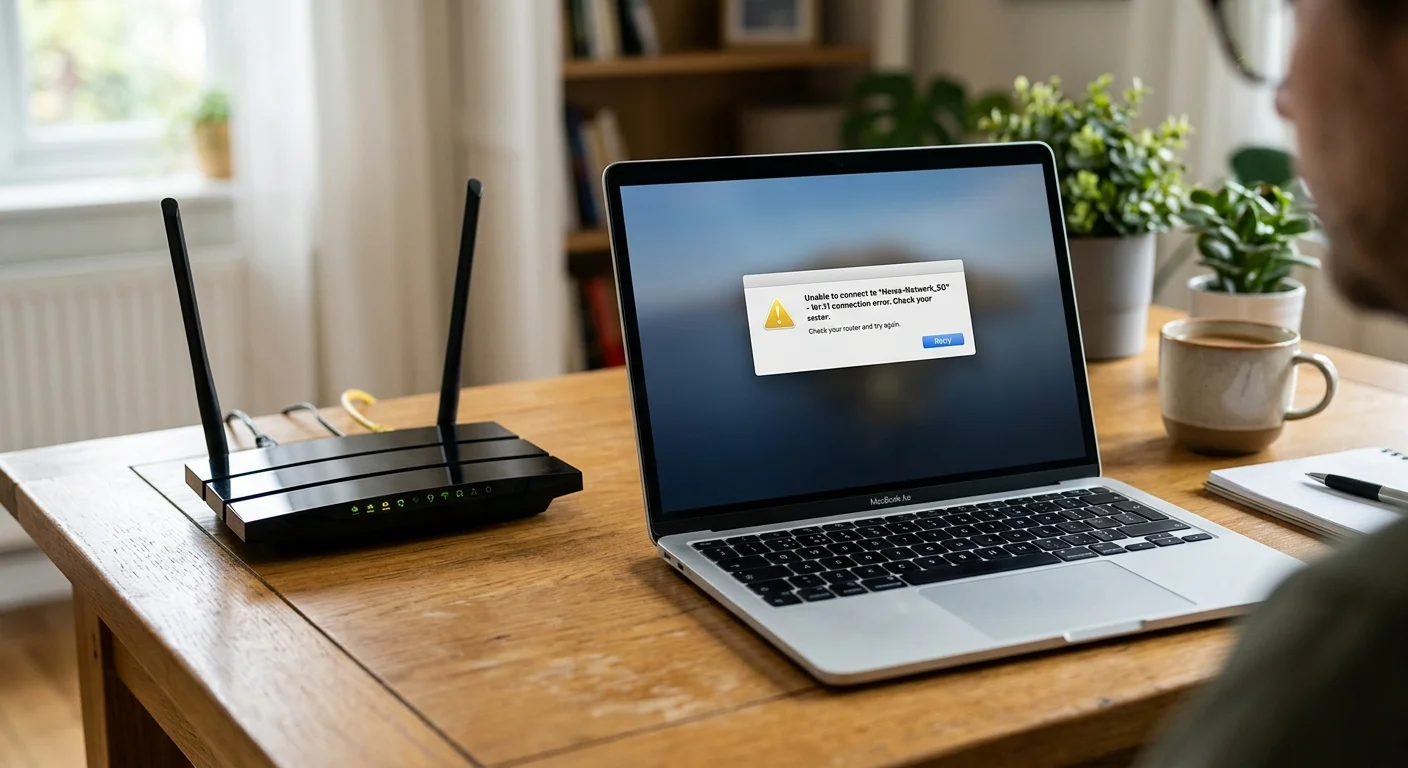
A laptop that repeatedly disconnects from Wi-Fi can interrupt online meetings, slow down work, and make everyday browsing frustrating. Sometimes the problem comes from the router or internet service, while in other cases it is caused by Windows settings, wireless drivers, or the laptop's Wi-Fi adapter.
Before replacing hardware or paying for a repair, try the troubleshooting steps below to identify the likely cause.
1. Restart Your Router and Laptop
Temporary network or software issues can cause repeated disconnections. Restart your laptop and router, then reconnect to your wireless network. If other devices also lose their connection, the router or internet service may be responsible.
2. Check Your Internet Connection
Test Wi-Fi on another phone or computer. If every device disconnects, check your router's status lights and contact your internet provider if necessary. If only your laptop is affected, continue with laptop-specific troubleshooting.
3. Update the Wi-Fi Driver
An outdated or corrupted wireless driver can cause connection instability. Open Device Manager in Windows, expand Network adapters, identify your wireless adapter, and check for driver updates. If the problem began after an update, the manufacturer's driver or the option to roll back the driver may help.
4. Disable Wi-Fi Power Saving
Windows may manage power to some wireless adapters in ways that affect connectivity. Open Device Manager, locate your Wi-Fi adapter, and check its Properties for a Power Management tab. If an option allows the computer to turn off the device to save power, test whether disabling it improves stability. Not every adapter exposes this setting.
5. Forget and Reconnect to the Network
Saved wireless settings can occasionally cause connection problems. In Windows Wi-Fi settings, select the affected network, choose Forget, and reconnect using the correct password. Make sure you have the password before removing the saved network.
6. Improve the Wi-Fi Signal
Distance, walls, interference, and nearby electronic devices can weaken wireless signals. Move closer to the router and test again. If the connection becomes stable nearby, consider repositioning the router or using a suitable access point or mesh system.
7. Check the Wi-Fi Frequency Band
Many routers offer both 2.4 GHz and 5 GHz Wi-Fi. The 2.4 GHz band often reaches farther, while 5 GHz can provide higher speeds at shorter distances. If your router offers both, test the other band to see whether it improves stability in your location.
8. Install Windows Updates and Check Network Settings
Install appropriate Windows updates and restart the laptop. If the problem continues, review your network settings and any VPN or security software that may affect connectivity. A Windows network reset can help with persistent configuration problems, but it may remove saved network details and virtual network settings, so use it only after simpler checks.
9. Check the Wireless Adapter for Hardware Problems
If the laptop disconnects on different networks even after driver and software troubleshooting, the wireless adapter, antenna connections, or motherboard may need inspection. Hardware work should be performed by a qualified technician, especially if the laptop needs to be opened.
When Should You Seek Professional Help?
Consider professional support if the Wi-Fi option disappears, the wireless adapter is missing from Device Manager, the connection drops across multiple networks, or troubleshooting has not resolved the problem. A technician can check drivers, network configuration, antenna connections, and wireless hardware.
Laptop and Network Support in Dubai
Trust Skills provides IT support and computer troubleshooting services in Dubai. If your laptop keeps disconnecting from Wi-Fi, professional diagnostics can help determine whether the issue is related to Windows, the wireless adapter, or your network setup.
Contact Trust Skills to ask about laptop repair and network troubleshooting services.
Frequently Asked Questions
Why does my laptop disconnect from Wi-Fi but my phone stays connected?
This often points to a laptop-specific issue, such as a wireless driver, power setting, adapter fault, or saved network configuration. Test the laptop on another Wi-Fi network to narrow down the cause.
Can an outdated Wi-Fi driver cause frequent disconnections?
Yes. An outdated or faulty driver can affect wireless stability. Check for a suitable driver from your laptop or wireless adapter manufacturer's official support page.
Why does my laptop connect to Wi-Fi but have no internet?
The laptop may be connected to the router while the router has lost its internet connection. Test other devices and check your router or internet provider before changing laptop settings.
Will resetting network settings delete my files?
A network reset normally does not delete personal documents, but it can remove saved Wi-Fi networks and alter network-related settings. Record any special configuration before resetting.