
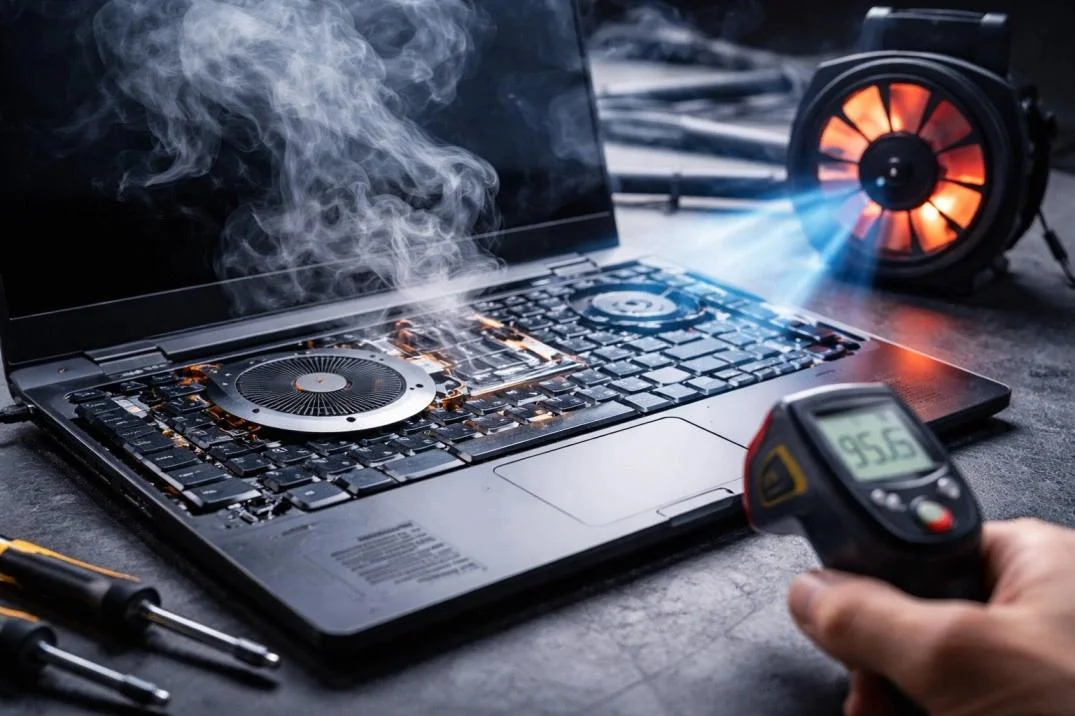
Why Is Your Laptop Overheating?
Does your laptop become unusually hot while browsing the internet, attending online meetings, playing games or working with office applications? Do the fans sound louder than usual, or does the laptop suddenly slow down after a few minutes?
Laptop overheating is a common problem, but it should not be ignored. Excessive heat can cause performance throttling, unexpected shutdowns and instability. In some cases, overheating indicates a cooling system fault that requires professional attention.
The good news is that not every overheating problem requires an expensive repair. Sometimes, a change in usage habits or improved ventilation can help. Other cases may involve dust buildup, a faulty fan or deteriorated thermal interface material.
In this guide, we explain 10 common causes of laptop overheating, what you can safely check yourself and when to consider professional laptop repair in Dubai.
1. Dust Blocking the Cooling System
Dust can accumulate inside a laptop over time, restricting airflow through the cooling fan and heat sink.
When hot air cannot escape efficiently, internal temperatures may rise even during ordinary tasks.
Common warning signs include:
- The fan runs frequently or at high speed.
- The laptop becomes hotter than usual.
- Performance drops during demanding tasks.
- Hot air is not flowing normally from the exhaust vent.
Keep external vents clear and use the laptop on a hard, flat surface. If dust has accumulated internally, professional cleaning may be necessary. Avoid inserting objects into the vents or opening the laptop unless you know how to do so safely.
2. A Faulty or Worn Cooling Fan
The cooling fan moves hot air away from internal components. If it becomes damaged, obstructed or worn, the cooling system may not work correctly.
You may hear rattling, grinding or unusual fan noises. In some cases, the fan may fail to spin properly.
Check whether the exhaust vents are obstructed and listen for unusual sounds. If the fan is damaged or not operating correctly, it may need inspection or replacement.
Do not continue running a laptop that repeatedly overheats or shuts down because of a suspected cooling failure.
3. Using the Laptop on a Bed or Soft Surface
Using a laptop on a bed, blanket, sofa or cushion can block the ventilation openings, depending on the laptop design.
This restricts airflow and can cause the internal temperature to rise.
For better ventilation:
- Place the laptop on a hard, flat surface.
- Keep the air intake and exhaust vents unobstructed.
- Avoid covering the laptop with clothing or blankets.
- Consider a suitable laptop stand if it improves airflow.
This simple change may help reduce heat during everyday use.
4. Too Many Applications Running at Once
Running demanding applications simultaneously can increase CPU and GPU workload, generating more heat.
Video editing, gaming, large spreadsheets, virtual machines and multiple resource-intensive browser tabs can all increase system load.
Open Task Manager on Windows and check which applications are using significant CPU, memory or GPU resources. Close programs you do not need, and investigate any unfamiliar process that consistently consumes unusually high resources.
If the laptop becomes excessively hot even when idle, the cause may be more than ordinary workload.
5. Dried or Deteriorated Thermal Interface Material
Laptops use thermal interface material, such as thermal paste, to improve heat transfer between certain components and their cooling assemblies.
Depending on the model and its condition, deteriorated thermal material or poor contact between the component and heat sink may contribute to high temperatures.
A technician can inspect the cooling assembly and determine whether thermal paste or another manufacturer-specified thermal interface material needs replacement.
Not every hot laptop needs new thermal paste. The cooling system should be diagnosed first, and the correct material should be used for the specific laptop model.
6. Hot Ambient Temperatures
The surrounding environment affects how effectively a laptop can release heat.
In hot climates such as Dubai, a laptop working in a warm room, vehicle or poorly ventilated space may have less cooling headroom than it would in a cooler environment.
Whenever possible, use your laptop in a comfortably cooled room, keep it away from direct sunlight and allow sufficient space around the ventilation openings.
Never leave a laptop in a hot parked vehicle for extended periods. High temperatures can also affect the battery and other components.
7. Malware or Unwanted Background Processes
Some unwanted software and background processes can keep the processor busy even when you are not actively using the laptop.
Unusually high CPU usage may increase fan activity, power consumption and heat.
Check Task Manager for processes that consistently use excessive resources, install operating system updates and run a scan with a reputable security solution if you suspect malware.
Do not assume that every high-resource process is malicious. Some legitimate updates, indexing tasks and applications temporarily require additional processing power.
8. Blocked Airflow or a Poor Cooling Design
Some laptops have limited cooling capacity, particularly compact models running demanding workloads. Restricted vents, unsuitable surfaces or accessories that obstruct airflow can make the problem worse.
Keep ventilation openings clear and use the laptop according to the manufacturer's recommendations. A cooling pad may help some models, but it will not repair a faulty fan or blocked internal heat sink.
If temperatures remain excessive after improving airflow, the cooling system may need a closer inspection.
9. Outdated Software, Drivers or Firmware
Software problems can sometimes cause abnormal processor or graphics activity, which may contribute to heat and fan noise.
Install appropriate operating system updates and use drivers and firmware intended for your exact laptop model. Manufacturer updates may improve power management or address known stability issues.
However, a BIOS or firmware update should not be attempted casually on an unstable or overheating laptop. Follow the manufacturer's instructions and ensure the device has reliable power before proceeding.
10. A Battery or Internal Hardware Problem
If a laptop becomes unusually hot around the battery or charging area, or if the heat is accompanied by charging problems, sudden shutdowns or other unusual symptoms, a hardware fault may be involved.
Stop using the laptop and disconnect power if it is safe to do so when you notice a swollen battery, smoke, a burning smell or signs of a damaged battery. Do not press, puncture or attempt to remove a swollen battery yourself. Arrange professional inspection.
Other internal faults can also cause abnormal heat. A qualified technician can inspect the power system, cooling assembly and relevant components to identify the cause.
How to Check Whether Your Laptop Is Overheating
A warm laptop does not automatically mean there is a fault. Temperature varies with the processor, laptop design, workload and surrounding environment.
Look for a combination of warning signs:
- Fans remain unusually loud during light tasks.
- The laptop repeatedly slows down under ordinary workloads.
- The device shuts down unexpectedly.
- Temperature monitoring shows sustained high temperatures under normal use.
- The laptop becomes unusually hot in one area.
- Performance or stability has recently changed.
Use the manufacturer's diagnostics or a reputable monitoring utility compatible with your hardware. Compare readings with the manufacturer's specifications rather than relying on one universal temperature limit.
What You Can Safely Try at Home
Before arranging a repair, try these basic steps if the laptop is otherwise safe to use:
- Place the laptop on a hard, flat surface.
- Make sure all ventilation openings are unobstructed.
- Close applications you are not using.
- Restart the laptop if an application appears stuck.
- Check Task Manager for unusually high resource usage.
- Install relevant operating system and manufacturer-recommended updates.
- Use the laptop in a cooler, well-ventilated environment.
If the laptop continues to overheat, shuts down unexpectedly or produces unusual mechanical noises, stop trying repeated fixes and arrange a proper diagnosis.
Can Overheating Damage a Laptop?
Modern laptops have thermal protection mechanisms that can reduce performance or shut down the system when temperatures become excessive. These protections reduce risk, but repeated overheating should not be ignored.
Persistent heat may be associated with poor performance, instability and additional stress on components. A swollen battery or signs of electrical damage require particular caution.
Identifying the cause early can help prevent further problems and avoid replacing components unnecessarily.
When Do You Need Professional Laptop Repair?
Consider professional diagnosis if:
- The laptop overheats even during light use.
- The cooling fan is noisy, damaged or not working properly.
- The laptop repeatedly shuts down because of heat.
- Cleaning the external vents does not help.
- The device has suffered liquid damage or physical damage.
- You suspect a battery, motherboard or internal cooling fault.
A technician can inspect the fan, heat sink, ventilation, thermal interface material, power system and software activity to determine the appropriate repair.
Laptop Overheating Repair in Dubai
At Trust IT Skills, we help customers diagnose laptop overheating, cooling problems, loud fans, performance drops and unexpected shutdowns in Dubai.
Depending on the model and the cause of the fault, our laptop repair and maintenance services may include cooling-system inspection, internal cleaning, fan troubleshooting, thermal maintenance, hardware diagnostics and software troubleshooting.
If your laptop is getting unusually hot, do not assume that you need to buy a new device or replace expensive components. The right solution starts with identifying the cause.
Contact Trust IT Skills for professional laptop repair and troubleshooting in Dubai.
Frequently Asked Questions
Why does my laptop get hot even when I am not doing anything?
Background applications, updates, restricted airflow, cooling-system problems or unwanted processes can increase heat. Check resource usage and ventilation. If the problem continues, arrange a diagnosis.
Can a laptop overheat because of dust?
Yes. Dust can restrict airflow through the fan and heat sink. Internal cleaning may help when dust buildup is confirmed as the cause.
Does changing thermal paste fix laptop overheating?
It can help when the thermal interface is contributing to poor heat transfer, but it will not solve every overheating problem. The cooling system should be inspected first.
Is it normal for a laptop fan to run loudly?
Fans often become louder during gaming, video editing or other demanding tasks. Persistent loud fan noise during light use, especially with high temperatures or shutdowns, may indicate a problem.
Will a cooling pad solve laptop overheating?
A cooling pad may improve airflow on some laptops, but results vary by model. It cannot fix a failed fan, blocked internal heat sink or other hardware fault.
Why does my laptop shut down when it gets hot?
Excessive temperatures can trigger protective shutdowns. Cooling-system faults, blocked airflow or unusually high workloads may be responsible, so repeated shutdowns should be investigated.
Where can I get laptop overheating repair in Dubai?
Trust IT Skills provides laptop troubleshooting, hardware diagnosis and repair services in Dubai. Contact us to identify the cause of your laptop's overheating problem.