
Introduction
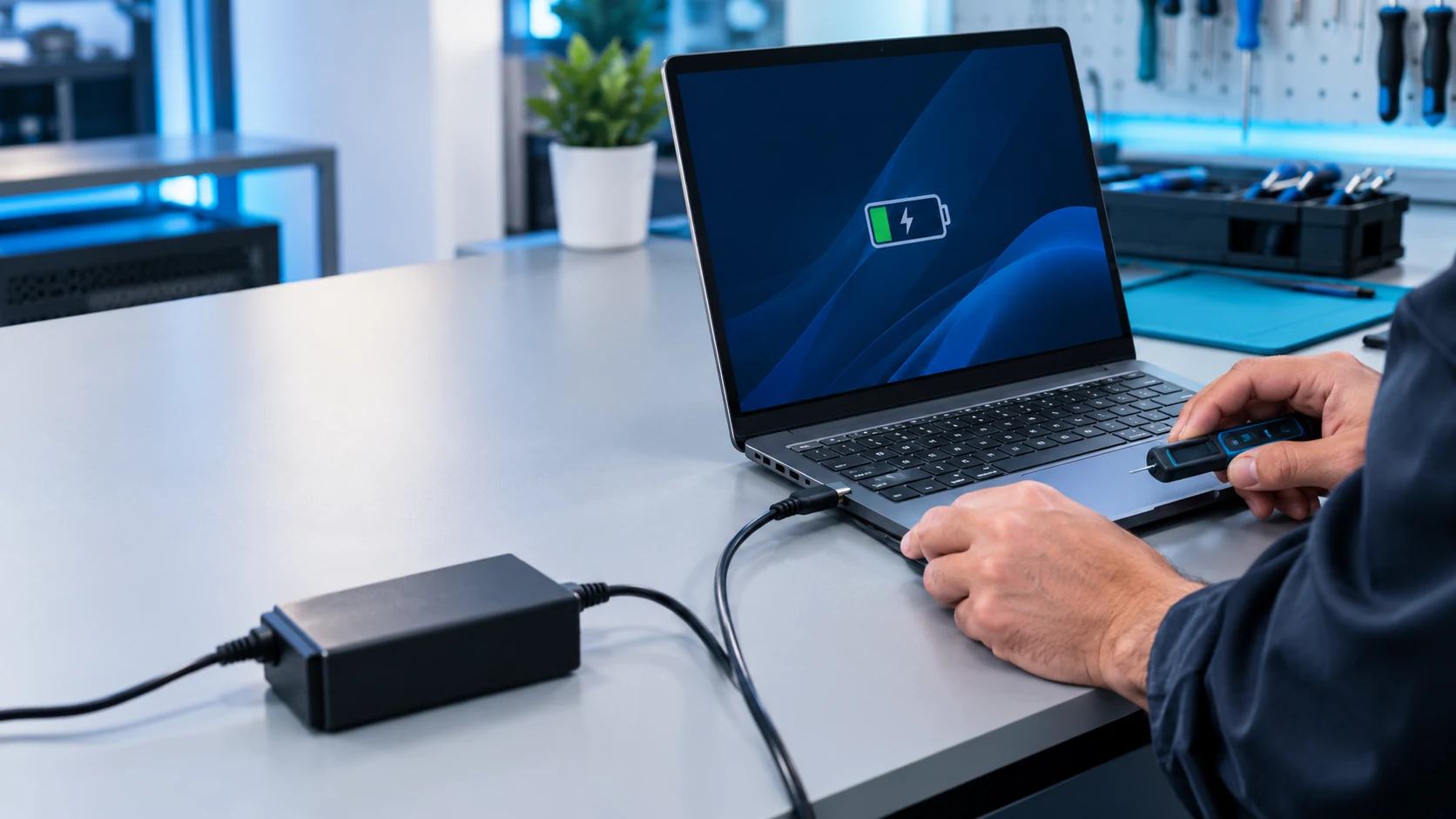
Is your laptop plugged in but not charging? Perhaps the battery percentage stays at 0%, the charging light does not turn on, or your laptop switches off as soon as you disconnect the power adapter. These problems can interrupt your work, studies, meetings, and everyday activities.
A laptop that will not charge does not automatically need a new battery. The problem could be a faulty charger, a damaged charging port, an incorrect power setting, an ageing battery, or an internal hardware fault.
Before spending money on replacement parts, try the safe troubleshooting steps in this guide. We explain nine common causes of laptop charging problems, practical fixes you can try, and when professional laptop repair in Dubai may be necessary.
Why Is My Laptop Plugged In but Not Charging?
Start by checking the exact message beside your laptop battery icon. Windows may indicate that the charger is connected without the battery actually charging. Alternatively, the laptop might not recognise the power adapter at all.
These symptoms can have different causes. A charger that supplies insufficient power may run the laptop without increasing the battery percentage, while a damaged port or worn battery may prevent normal charging altogether.
1. Faulty or Incompatible Laptop Charger
A damaged or incompatible charger is one of the first things to investigate. The adapter may have an internal fault, a damaged cable, or insufficient wattage for your laptop.
A charger can sometimes power the laptop while failing to provide enough energy to charge its battery, particularly when the system is under heavy load.
How to fix it:
- Inspect the charger, cable, connector, and power adapter for visible damage.
- Confirm that the wall socket works by testing it with another device.
- Check the voltage, wattage, connector type, and compatibility required by your laptop model.
- Test with a known-working, compatible charger if available.
Avoid using damaged adapters or chargers that do not meet your laptop manufacturer's specifications.
2. Loose Power Connections or a Faulty Wall Socket
Sometimes, the laptop itself is working correctly and the problem is the power supply. A loose wall connection, faulty extension socket, damaged power cable, or poorly connected adapter can interrupt charging.
How to fix it:
- Connect the charger securely at both ends.
- Try a different working wall socket.
- If the adapter has a detachable power cable, inspect the connection between the cable and adapter.
- Disconnect unnecessary extension leads or power strips during testing.
If charging resumes after changing the socket or cable, monitor the connection to make sure the problem does not return.
3. A Damaged or Loose Laptop Charging Port
A laptop charging port can become damaged through regular use, accidental pulls on the cable, impact, or liquid exposure. Dust and debris may also interfere with the connection.
Common warning signs include charging that starts and stops, a connector that feels loose, or a charging light that changes when the cable moves.
How to fix it:
- Turn off the laptop and disconnect the charger before inspecting the port.
- Look for visible damage or obstructions without inserting metal objects into the connector.
- Avoid bending or forcing the plug to maintain a connection.
- Arrange a professional inspection if the port is loose, damaged, burnt, or intermittently connected.
Depending on the design, repair may involve replacing a charging jack, a USB-C port, or a connected circuit board. Proper diagnosis helps prevent unnecessary part replacement.
4. The Laptop Battery Has Reached the End of Its Useful Life
Laptop batteries gradually lose capacity as they age and undergo repeated charging cycles. A deteriorated battery may stop accepting a normal charge, discharge rapidly, or cause the laptop to shut down when disconnected from external power.
Common symptoms include:
- The battery percentage remains at a very low level.
- The laptop shuts down immediately after unplugging.
- Battery runtime is much shorter than it used to be.
- The manufacturer's diagnostic tool reports a battery health problem.
On many Windows laptops, you can generate a battery report by opening Command Prompt and running:
powercfg /batteryreport
Review the generated report for available battery capacity and usage information. You can also use your laptop manufacturer's diagnostic application.
If the battery is worn out, replacement with a compatible battery may resolve the problem. However, test the charger and charging system before buying a replacement.
Important: If your battery is swollen, unusually hot, or showing signs of damage, stop using and charging the laptop. Do not press, puncture, or attempt to remove a swollen battery yourself. Arrange professional service.
5. A Battery Conservation Setting Is Limiting the Charge
Does your laptop charge to 60%, 80%, or another percentage and then stop? This behaviour may be intentional rather than a hardware fault.
Some manufacturers provide battery conservation or charge-limit features that restrict the maximum charge to help manage long-term battery wear. These settings are particularly useful for laptops that remain connected to a charger throughout the working day.
How to fix it:
- Open your laptop manufacturer's battery or power-management application.
- Look for settings such as Battery Conservation, Charging Limit, or Battery Health Management.
- Check whether a maximum charging percentage is enabled.
- Adjust the limit only if you want a higher charge level and your laptop supports that option.
If the battery stops charging at a very low level or the setting does not explain the behaviour, run the manufacturer's hardware diagnostics.
6. Your USB-C Charger or Cable Is Not Providing Enough Power
Many modern laptops support charging through USB-C, but not every USB-C port, charger, cable, or docking station provides the power required by the computer.
You may see a slow-charger warning, or the battery percentage may continue to decrease while the charger is connected.
How to fix it:
- Use the charger recommended for your laptop model.
- Confirm that the USB-C port supports charging.
- Check that the cable supports the required power level.
- Connect the charger directly to the laptop rather than through a hub or docking station during testing.
- Confirm that the adapter delivers sufficient wattage for your device.
For additional guidance, see Microsoft's official article on fixing USB-C problems in Windows.
7. The Laptop Is Too Hot or Too Cold
Battery charging can be restricted when a laptop operates outside its supported temperature range. Excessive heat may cause the system to limit charging to protect the battery and internal components.
Blocked cooling vents, heavy workloads, cooling-system problems, direct sunlight, and hot surroundings can all contribute to elevated temperatures.
This is worth considering if you use your laptop in a hot environment, such as a vehicle or an area exposed to direct sunlight in Dubai.
How to fix it:
- Move the laptop away from direct sunlight and other heat sources.
- Use the laptop on a hard, flat surface with clear ventilation.
- Close demanding applications if the laptop is overheating.
- Allow the device to return to a normal operating temperature before testing charging again.
If the laptop repeatedly overheats, shuts down, or refuses to charge after cooling, the battery, cooling system, or internal power components may need inspection.
8. Windows Power Management, Drivers, or Firmware Problems
In some cases, Windows may report battery status incorrectly or a power-management component may not function as expected. Manufacturer-specific drivers or firmware issues can also contribute to charging or battery-detection problems.
How to fix it:
- Save your work and restart the laptop.
- Check the manufacturer's support website for compatible battery, chipset, and power-management updates.
- Run the manufacturer's battery and hardware diagnostic tools.
- If appropriate for your device, follow the manufacturer's instructions for refreshing or reinstalling the Windows battery device.
BIOS updates should not be the first response to a charging problem. If an update is recommended for your exact model, read the manufacturer's instructions carefully and make sure the laptop has a reliable power supply before starting.
9. A Faulty Charging Circuit or Motherboard
If you have checked the charger, connection, battery settings, and Windows software without resolving the problem, the fault may be inside the laptop.
Possible causes include a damaged DC-in connector, a faulty charging controller, damaged power-management components, or a motherboard-level fault.
Possible warning signs include:
- The laptop does not recognise a compatible, working adapter.
- The battery remains at 0% despite repeated testing.
- The charging indicator does not behave normally.
- The laptop loses power unexpectedly while connected.
- The charging port or nearby components show signs of electrical damage.
These symptoms do not identify a specific failed component on their own. A technician may need to test the adapter input, charging port, battery, and power circuitry to locate the fault.
Replacing the battery without testing the charging system may not solve the problem if the underlying issue is on the motherboard.
Quick Checklist: What to Check Before Booking a Repair
Before spending money on replacement parts, work through this checklist:
- Confirm that the wall socket works.
- Check the charger, cable, and power connections.
- Test a compatible charger with the correct wattage, if available.
- Connect the charger directly to the laptop.
- Restart Windows and check the battery status.
- Review any manufacturer battery-charge limits.
- Run the manufacturer's battery diagnostics.
Do not continue using a damaged charger or repeatedly reconnect a loose or burnt charging port. If you notice swelling, smoke, sparks, a burning smell, or unusual heat, stop using the equipment and arrange a professional inspection.
When Should You Book Laptop Repair in Dubai?
Basic troubleshooting can resolve some charging issues, but persistent problems may require hardware testing. Consider professional diagnosis if your laptop still will not charge with a compatible adapter, the charging port is damaged, the battery fails its diagnostics, or the device switches off when external power is disconnected.
Trust IT Skills provides laptop repair and troubleshooting services in Dubai, including support for charging problems, battery faults, hardware issues, and other laptop repairs.
The correct solution depends on your laptop model and the actual cause of the fault. Diagnosing the problem before replacing parts can help you avoid unnecessary expenses.
If your laptop is not charging, contact Trust IT Skills to discuss the issue and arrange the appropriate support.
Frequently Asked Questions
1. Why is my laptop plugged in but not charging?
Common causes include an incompatible charger, a damaged cable or charging port, a worn-out battery, an enabled battery charge limit, or an internal power fault. Check the simple causes first and arrange diagnostics if the problem continues.
2. Why does my laptop battery stay at 0% while plugged in?
The laptop may not be receiving sufficient power, the battery may have failed, or the charging circuit may not be working correctly. Test with a compatible charger and use the manufacturer's diagnostics before replacing parts.
3. Can I use my laptop while its battery is not charging?
Some laptops can operate from a compatible power adapter even when the battery is not charging. However, the computer may switch off if external power is interrupted. Do not continue using a device with a swollen battery, burning smell, or other signs of electrical damage.
4. Do I need to replace my battery if the laptop will not charge?
Not necessarily. The charger, charging port, USB-C cable, power settings, or motherboard may be responsible. Proper diagnosis helps determine whether the battery actually needs replacement.
5. How much does laptop charging-port repair cost in Dubai?
The cost depends on your laptop model, connector design, parts availability, and the complexity of the repair. Request a diagnosis and quotation before authorising the work. See our laptop repair cost guide for Dubai for more information about the factors that affect repair prices.
6. Is it safe to use a third-party laptop charger?
A third-party charger may be suitable if it comes from a reliable source and meets your laptop manufacturer's voltage, wattage, connector, and charging requirements. Do not assume a charger is compatible simply because the plug fits.
Final Thoughts
A laptop that will not charge does not always need a new battery. The cause could be a faulty adapter, a damaged charging port, a battery conservation setting, an incompatible USB-C charger, a software issue, or a fault in the internal charging circuitry.
Start with simple, safe troubleshooting before purchasing replacement parts. If your laptop continues to lose power or refuses to charge, professional diagnosis can help identify the actual problem and determine the most practical repair.
Need help with a laptop charging problem? Trust IT Skills provides laptop repair and IT support services in Dubai. Visit our laptop repair service page or contact our team to discuss your issue.