
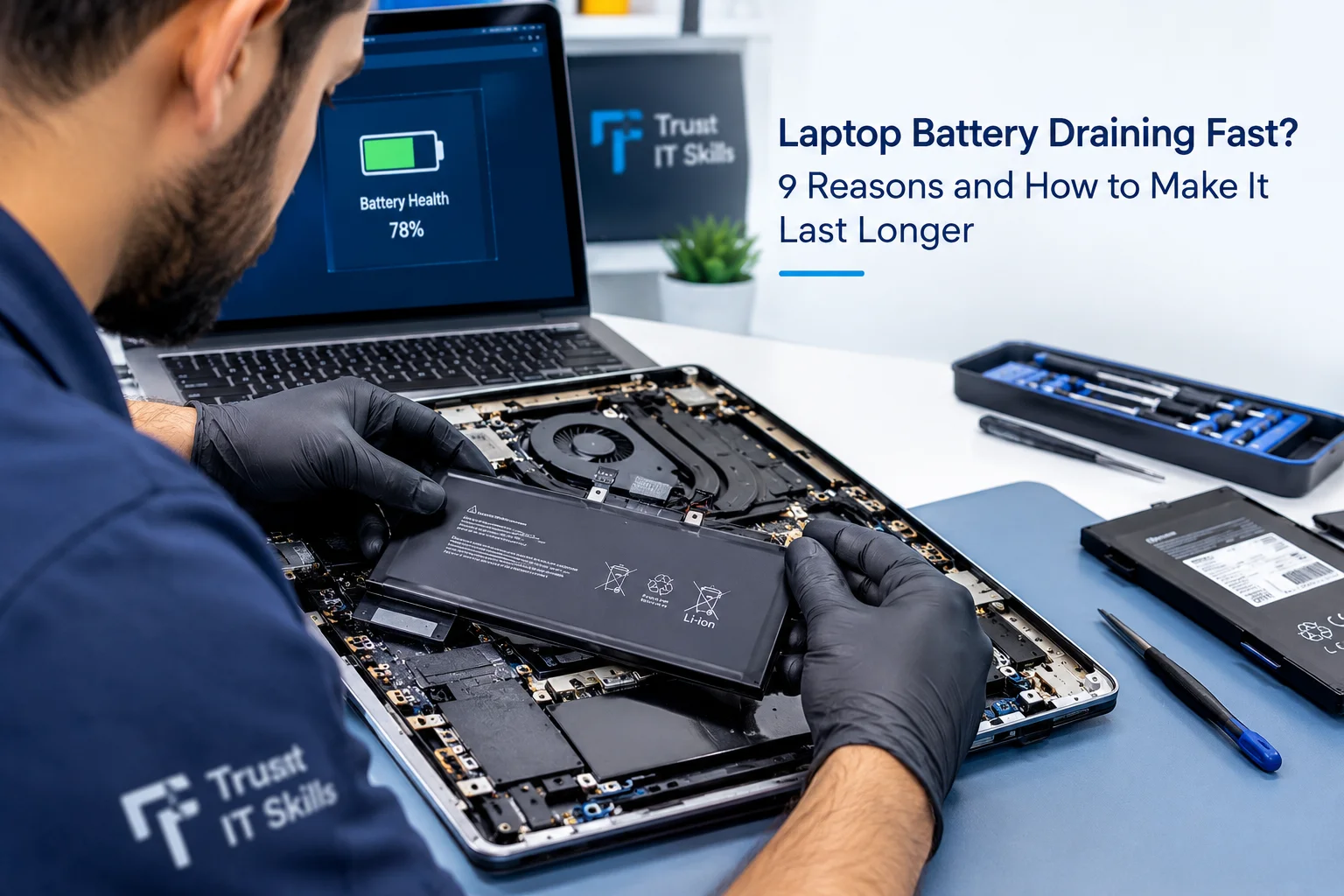
Why Is Your Laptop Battery Draining So Fast?
Is your laptop battery losing charge quickly, even when you are not doing anything demanding? A laptop battery that drains fast can interrupt your work, reduce productivity, and make it difficult to use your device away from a charger. The cause may be background applications, incorrect power settings, battery wear, or a hardware issue.
In this guide, Trust IT Skills explains nine common reasons for fast laptop battery drain and practical steps you can take to improve battery life.
1. Too Many Applications Running in the Background
Applications running in the background can consume processor power, memory, and battery even when you are not actively using them.
What to do:
- Open Task Manager by pressing Ctrl + Shift + Esc.
- Check which applications are using significant CPU resources.
- Close programs you do not need.
- Disable unnecessary startup applications from Task Manager.
2. Screen Brightness Is Too High
The laptop display is one of the components that uses the most power. Keeping brightness at maximum can noticeably shorten battery life.
Fix: Reduce screen brightness to a comfortable level and enable automatic brightness adjustment if your laptop supports it.
3. Your Battery Has Degraded
Laptop batteries gradually lose capacity as they age and go through charging cycles. If your laptop used to last several hours but now runs out of power quickly, battery wear may be the reason.
Check battery health in Windows:
- Open Command Prompt or Terminal.
- Run powercfg /batteryreport.
- Open the generated battery report and compare Design Capacity with Full Charge Capacity.
If the full charge capacity is much lower than the design capacity, the battery may need professional testing or replacement.
4. Your Laptop Is Overheating
Excessive heat can cause cooling fans to work harder and may affect battery performance. Dust buildup, blocked vents, or cooling system problems can contribute to overheating.
Try these steps:
- Use your laptop on a hard, flat surface.
- Keep air vents clear of dust and obstructions.
- Avoid using the laptop on blankets or pillows.
- Arrange a cooling system inspection if the laptop frequently becomes unusually hot.
5. Power Settings Are Not Optimized
High-performance power settings can use more energy than necessary during everyday tasks.
Fix: In Windows, open Settings, select System, then Power & battery. Choose a power-saving mode when you need longer battery life, and review the screen and sleep settings.
6. Wi-Fi, Bluetooth, and Connected Devices
Wireless connections and connected accessories can add to power consumption, particularly when devices are constantly searching for connections or transferring data.
Fix: Turn off Bluetooth when it is not needed, disconnect unused USB accessories, and use Airplane mode when you do not need wireless connectivity.
7. Outdated Drivers or Windows Updates
Driver problems, unfinished updates, or software bugs can sometimes cause unusually high power usage.
Fix: Check Windows Update, install appropriate manufacturer-recommended drivers, and restart your laptop after updates. Avoid installing drivers from untrusted websites.
8. Heavy Applications and High CPU Usage
Gaming, video editing, virtual machines, and other demanding applications can consume significantly more power than browsing or document editing.
Fix: Close demanding applications when you do not need them, reduce unnecessary browser tabs, and use a balanced or power-saving mode for routine work.
9. The Charger or Charging System Has a Problem
If your battery percentage barely increases while charging, disconnects intermittently, or drains even while plugged in, the issue may involve the charger, charging port, battery, or motherboard charging circuit.
Fix: Use a compatible charger with the correct specifications and inspect the charging port for damage. If the issue continues, arrange a professional diagnosis rather than replacing parts without testing.
When Should You Replace Your Laptop Battery?
Consider professional battery testing if your laptop shuts down unexpectedly, loses charge unusually quickly, or has a substantially reduced battery capacity. If the battery is swollen, stop using and charging the laptop, avoid pressing or puncturing the battery, and arrange safe professional service promptly.
Need Laptop Battery or Charging Repair in Dubai?
If your laptop battery drains too quickly despite trying these steps, Trust IT Skills can help diagnose battery health, charging problems, overheating, and power-related hardware faults. Correct diagnosis can help you avoid replacing parts unnecessarily.
Contact Trust IT Skills for laptop troubleshooting, battery replacement assessment, and laptop repair services in Dubai.
Frequently Asked Questions
Why does my laptop battery drain when it is turned off?
Some laptops use power for connected standby, wake features, or connected devices. Check shutdown and sleep settings, disconnect accessories, and compare battery drain after a full shutdown.
How can I check laptop battery health?
On many Windows laptops, run powercfg /batteryreport in Command Prompt or Terminal and review the report's design and full-charge capacities.
Does keeping a laptop plugged in damage the battery?
Modern laptops manage charging, but prolonged heat and remaining at a high charge level can contribute to battery aging. If available, use the manufacturer's battery conservation or charge-limit feature.
Can a laptop battery drain quickly because of a virus?
Malware can increase processor or network activity and contribute to power drain, although there are many other possible causes. Run a scan using a trusted security tool if you notice suspicious activity.
Trust IT Skills — practical IT support and laptop repair solutions for homes and businesses in Dubai.