
Introduction
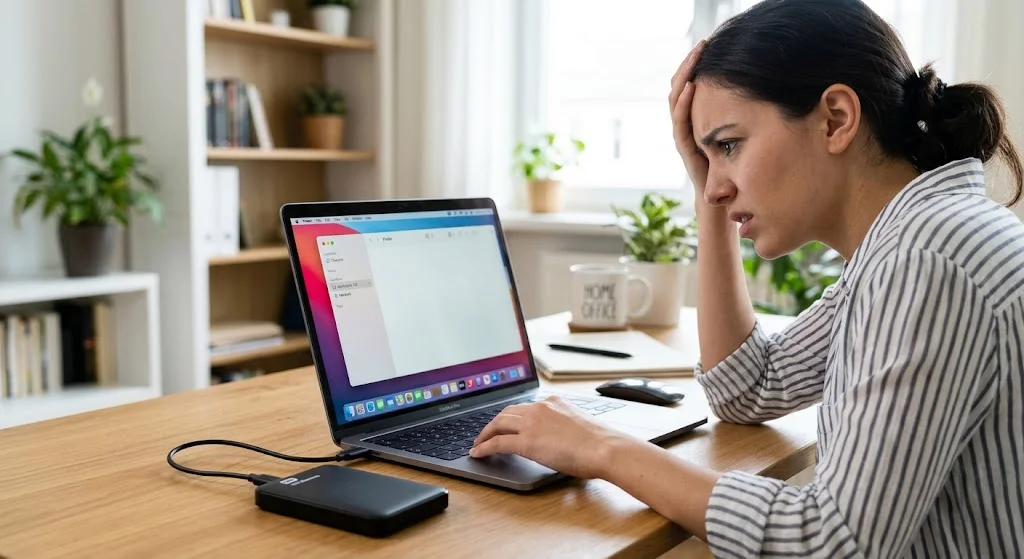
Have you connected an external hard drive to your computer only to discover that it is missing from File Explorer? If the drive contains important photos, personal documents, business records, or backup files, the problem can be stressful.
An external hard drive that is not showing up does not always mean your data is lost. The cause may be a connection issue, a Windows detection problem, a damaged enclosure, or a fault inside the drive itself. Identifying the actual cause is important before attempting repairs.
In this guide, we explain nine common reasons an external hard drive may not be detected, the warning signs to look for, and when professional computer repair is the safest option.
1. Damaged USB Cable or Connection
A damaged cable or unreliable USB connection can prevent your computer from detecting an external hard drive. The drive may appear intermittently, disconnect unexpectedly, or fail to respond when connected.
If the drive contains important files, avoid repeatedly reconnecting it when the connection is unstable. A technician can assess whether the fault is related to the cable, port, or drive hardware.
2. Insufficient Power Supply
Some external hard drives require more power than a particular USB port or hub can provide. Others rely on a dedicated power adapter. Inadequate power can cause intermittent detection or prevent the drive from starting correctly.
Repeated disconnections should not be ignored, especially when the drive contains your only copy of important files. Professional assessment can help identify the underlying issue.
3. Windows Is Not Recognizing the Drive Correctly
Sometimes Windows detects a connected storage device but does not display it in File Explorer. This can happen because of a drive-letter conflict, a storage configuration issue, or a device detection problem.
The drive may still contain its files even though it is not visible in the usual location. A technician can check how Windows detects the device and determine the appropriate next step without making unnecessary changes to the stored data.
4. Outdated or Faulty Device Drivers
Driver or operating-system issues can interfere with communication between a computer and an external storage device. The problem may appear after an update, a system change, or a period of intermittent connectivity.
Correct diagnosis helps distinguish a software-related detection problem from a physical drive fault, avoiding unnecessary replacement of working hardware.
5. File-System Corruption
If the file system is damaged, Windows may detect the drive but fail to display its contents. You might see an unreadable volume, a format prompt, or an error when trying to access the drive.
If you need the files, do not format or initialize the drive simply because Windows asks you to. These actions can complicate data recovery. Professional assessment is recommended before attempting repairs when the stored information matters.
6. A Damaged External Drive Enclosure
Some external drives contain a separate enclosure or USB interface that connects the internal storage device to the computer. Damage to this interface can prevent detection even when the storage device itself may still be functional.
Determining whether the fault is in the enclosure or the drive requires the correct assessment and compatible equipment. Replacing parts without understanding the cause can waste money or create additional risks.
7. Physical Damage or Internal Drive Failure
External hard drives can be affected by drops, impacts, wear, electrical faults, or internal mechanical problems. Possible warning signs include clicking or grinding noises, repeated disconnections, unusually slow access, and files that suddenly become unavailable.
If the drive makes unusual noises or appears to be failing, stop using it and seek professional advice. Avoid opening the sealed internal assembly or repeatedly powering the drive on to test it.
8. Encryption or Access Restrictions
A drive protected by encryption or access controls may require the correct password, recovery key, or authorized account before its contents can be accessed. This can sometimes be mistaken for a detection or hardware problem.
Keep any available recovery keys and account details secure. A technician can help determine whether the issue relates to access protection or an underlying storage fault.
9. A Faulty USB Port or Computer Hardware
The problem may originate from the computer rather than the external hard drive. A defective USB port, internal connection, or other hardware issue can prevent a storage device from being detected correctly.
If the drive is not recognized reliably, professional diagnosis can help isolate the source of the problem and reduce the risk of replacing parts unnecessarily.
Warning Signs You Should Not Ignore
Contact a professional rather than continuing to experiment if you notice clicking or grinding noises, repeated disconnections, a drive that has been dropped, unusual heat, or a sudden inability to access important files.
If Windows asks you to format or initialize a drive that previously contained data, do not proceed until you understand the risk. The safest next step depends on the drive's condition and the importance of the information stored on it.
Why Professional Diagnosis Matters
Several different faults can produce the same symptom: an external hard drive that does not appear on the computer. Replacing the cable, enclosure, or drive without identifying the real cause may not solve the problem.
A professional assessment can help determine whether the issue involves the connection, Windows configuration, enclosure, file system, or internal hardware. If data recovery may be necessary, the recommended approach should prioritize protecting the existing information.
No recovery method can guarantee that every file will be recovered. The condition of the drive and any previous attempts to repair it can affect the available options.
External Hard Drive Repair and Data-Safe Troubleshooting in Dubai
Is your external hard drive not showing up, or are important files suddenly inaccessible? Trust Skills provides computer repair and IT support in Dubai to help customers investigate storage and device detection problems.
Instead of guessing which component has failed, arrange a professional assessment to understand the issue and the available repair options. If your files are important, mention this before any repair or recovery work begins.
Contact Trust Skills for external hard drive troubleshooting and computer repair support in Dubai. Get professional guidance on the next appropriate step for your device and data.
Frequently Asked Questions
Why is my external hard drive not showing up in File Explorer?
Common causes include USB connection problems, insufficient power, a Windows detection issue, file-system corruption, or drive failure. The cause needs to be identified before deciding on a repair.
Does an external hard drive that is not detected mean my files are lost?
No. A drive may be undetected because of a connection or enclosure problem, even when data remains on the storage device. The recovery possibilities depend on the actual fault and the drive's condition.
Should I format my external hard drive if Windows asks me to?
Not if you need the existing files. Formatting can complicate recovery. Stop and seek professional advice before making changes to a drive containing important data.
Can an external hard drive be repaired?
Some problems, such as connection or enclosure faults, may be repairable. Internal hardware failures can be more complex, and repairing the device is different from recovering its stored data. An assessment is needed to determine the available options.
Where can I get help with an external hard drive in Dubai?
Trust Skills provides computer repair and IT support in Dubai. Contact the team to discuss your external hard drive symptoms and whether a professional assessment is appropriate.