
Introduction
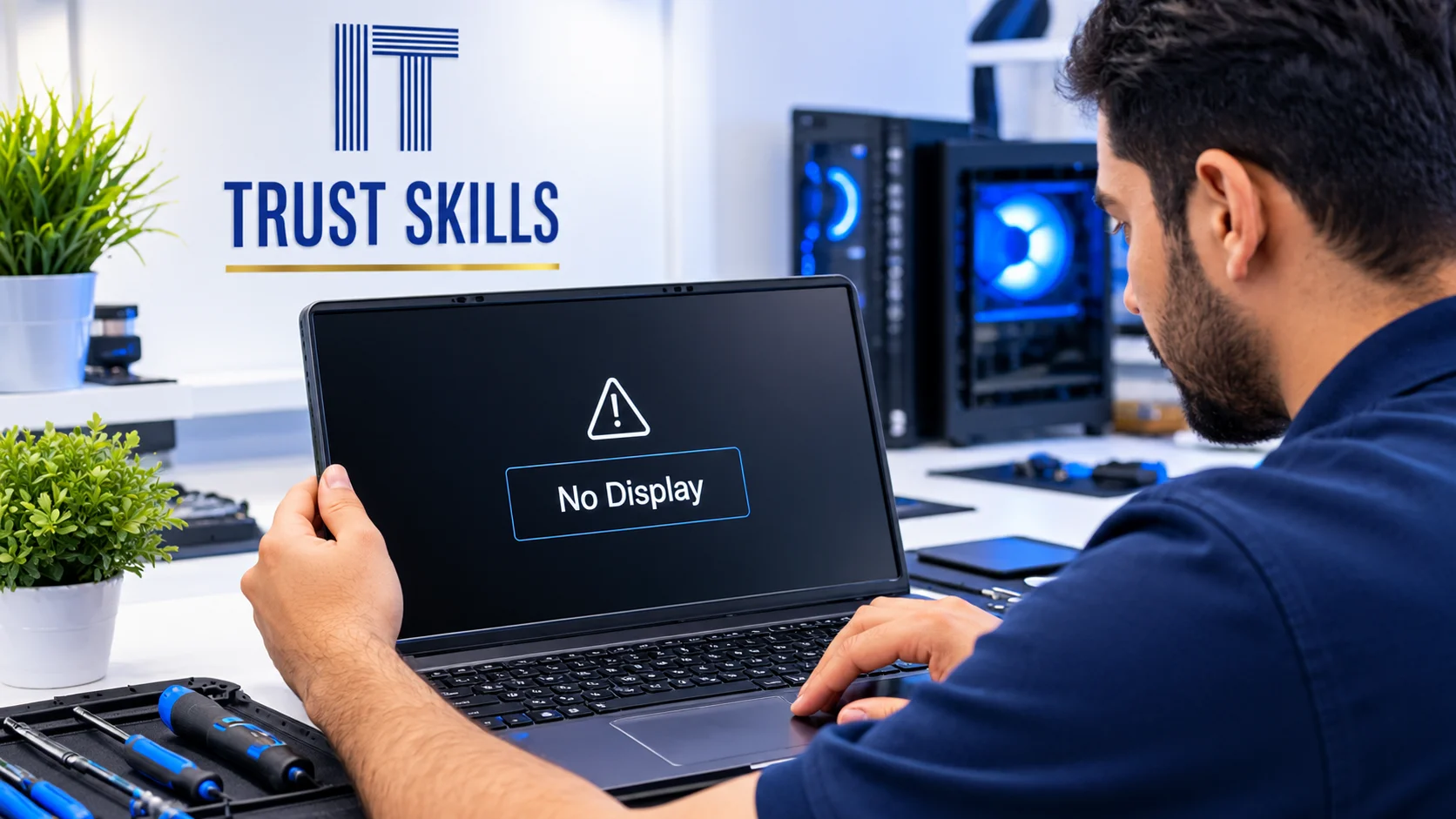
Does your computer turn on, with fans spinning and lights glowing, but nothing appears on the screen? A computer that powers on without displaying an image can have several causes, ranging from a loose cable to a memory or hardware problem.
Before assuming that your computer needs an expensive repair, try these safe troubleshooting steps. This guide explains the most common causes of a PC black screen and when to contact a professional computer repair technician in Dubai.
1. Check the Monitor and Power
First, confirm that your monitor is switched on and receiving power. Check the power cable, brightness setting, and indicator light. If possible, test the monitor with another computer or device.
2. Inspect the Display Cable
A loose or damaged HDMI, DisplayPort, DVI, or VGA cable can prevent the monitor from receiving a signal. Disconnect and reconnect both ends securely. If available, try a different cable or display port.
3. Select the Correct Monitor Input
Monitors may be set to the wrong input source. Use the monitor's menu to select the port you are using, such as HDMI or DisplayPort.
4. Check the RAM
Loose or faulty RAM can prevent a computer from completing its startup process. If you are experienced with computer hardware, shut down the PC, unplug the power cable, and follow proper electrostatic-discharge precautions before checking the memory modules. If you are unsure, ask a technician to inspect them.
5. Check the Graphics Card
If your desktop has a dedicated graphics card, make sure the monitor cable is connected to the correct output. A poorly seated or faulty graphics card may also cause a no-display problem. Power off and unplug the computer before any internal inspection.
6. Try the Motherboard Display Output
If your processor supports integrated graphics, you may be able to test the motherboard's display output. This will not work with every CPU or motherboard, and some systems disable integrated graphics when a dedicated GPU is installed.
7. Disconnect Unnecessary USB Devices
External drives, USB hubs, and other peripherals can sometimes interfere with startup. Turn off the computer and disconnect nonessential USB devices. Restart it with only the keyboard, mouse, and monitor connected.
8. Look for Diagnostic Lights or Beeps
Some motherboards use debug LEDs, beep codes, or diagnostic displays to indicate memory, CPU, graphics, or boot problems. Check the motherboard or computer manufacturer's manual for the meaning of the specific code. Do not assume every beep or light means the same thing across brands.
9. Consider a Power Supply or Motherboard Fault
Fans and lights turning on do not prove that the power supply is working correctly. A faulty power supply, motherboard, or other component can prevent the system from completing POST. Testing these parts may require professional diagnostic equipment.
10. Determine Whether Windows Is the Problem
If the manufacturer's logo appears but the screen goes black when Windows loads, the issue may involve graphics drivers, a Windows update, startup settings, or the operating system. If possible, test whether the BIOS or recovery environment appears. Avoid reinstalling Windows before considering whether important files need to be backed up.
When Should You Contact a Computer Repair Technician?
Seek professional help if the computer repeatedly fails to display an image, shows diagnostic errors, shuts down unexpectedly, or has signs of electrical damage. If you notice a burning smell, smoke, or unusual electrical noise, switch it off, unplug it if safe, and do not continue testing.
A technician can check the RAM, graphics card, power supply, motherboard, and other components systematically to identify the actual fault instead of replacing parts unnecessarily.
Computer Repair in Dubai
If your desktop or laptop powers on but displays nothing, Trust IT Skills can help diagnose computer hardware and startup problems. Professional troubleshooting can help identify the cause and determine the most practical repair option.
Contact Trust IT Skills to ask about computer repair and troubleshooting services in Dubai.
Frequently Asked Questions
Why does my computer turn on but the screen stays black?
Common causes include a monitor or cable issue, faulty RAM, graphics card problems, a power supply fault, or a startup failure. Check the external connections first.
Can faulty RAM cause no display?
Yes. Memory that is faulty or not seated correctly can prevent a computer from completing its initial hardware checks and displaying an image.
Why does my PC have power but no signal?
The monitor may be connected to the wrong output, the cable may be faulty, or the computer may not be completing startup. Test the monitor and cable before investigating internal hardware.
Will I lose my files if my computer has no display?
Not necessarily. A no-display problem does not automatically mean your files are lost. Avoid unnecessary resets or reinstallations, especially if the data is important.